
Your file library
Browsing your library requires files.read. File edits, sharing changes, and deletion use the separate files.update, files.share, and files.delete permissions. Bulk actions follow the same checks; missing actions may reflect your roles.
Files is your home for uploaded files and pastes. Each card brings together a preview, filename, size, activity, and file actions. The library opens with all your files, newest first; organizing into folders or tags is optional. The folder directory starts collapsed until you choose to keep it open on this device so your files stay close to search. Choose Folders and its count to browse it; All files and Unfiled stay available without expanding it. On phones, expand the directory to find New folder when folders already exist; the labeled New folder button stays beside navigation when the directory is empty. Inside a folder, the directory is named Subfolders and its path stays visible. Long folder directories scroll within their own region.
Upgrading from 2.0? Check the 2.1 compatibility notes for plain copied links and URL-ID changes before updating saved links or custom clients. The dependency refresh keeps the filtering and viewer controls described here.
Read a file card
Every card has the same layout and height, whether or not a file has tags or a folder. A file without an image preview shows an icon for its kind: video, audio, text or PDF, code, table for CSV and spreadsheets, archive, or a plain file. The icon follows the same rules as the share page viewer, so a CSV file or archive saved under a generic type is recognized by its name, and Users → More actions → View content shows the same icons. Earlier builds chose the icon from the stored type alone and matched parts of it, so code types such as JSON, XML, Markdown, and shell scripts showed a text or plain file icon, while Java archives showed a code icon. Badges on the preview show whether the file is Public or Private, or Protected by a password, and how long ago you uploaded it. Below the preview, the first line shows the filename and size. The second line shows the file's folder and tags on the left and its view and download counts on the right. Counts of 1,000 or more are abbreviated, such as 1.4K or 13K; point at a count to see the exact number.
A card shows up to two labels: two tags, or the folder and one tag. +N counts the file's other tags; when your role allows Edit tags (files.update and tags.manage), choose it to see every tag there. Earlier versions opened the editor for every role, where any change then failed. Labels are shortened when they don't fit; point at a label to see its full name. Choose a tag to show every file with that tag, or choose the folder to open it. Cards inside a folder leave out the name of the folder you are viewing.
Scroll through your library
Scroll normally with your mouse, trackpad, or touch screen. More files load as you reach them, without a Next page button. You can browse every matching file without changing pages.
Flare keeps cards and nearby file data in a limited window around your position. Returning to an earlier part of a large library may briefly show loading placeholders while those files load again. The file count describes the whole filtered result, not just the cards currently on screen. Your browser's Find command only searches rendered content; use the library's search field to find files anywhere in your account.
With Newest first or Oldest first, a slim date rail on the right helps you stay oriented. Its date label appears while you scroll, hover, or focus it, then recedes when you finish. On wide screens the rail stays faintly visible in the page margin. Choose Dates beside Sort & filters on phones, or Browse by date on tablets, to open a date dialog. Drag the horizontal slider or use its arrow keys to jump, then close the dialog to browse those files. The dialog stays in place while the library moves to your date. The control stays out of the cards, leaving the gallery and search panel aligned with the navbar. Click or drag along the rail to jump through the matching upload history. Flare loads files near your destination without first downloading every file you passed.
For very large libraries, the browser's own scrollbar follows the section you are browsing and extends as you continue. The date rail always covers the full matching history, so use it to jump straight to a distant date.
To use the rail from a keyboard, Tab to Browse files by date. Up/Down arrows move one row, Page Up/Page Down move farther, and Home/End go to the beginning or end. These follow the displayed order: with Oldest first, the beginning contains your oldest files. Normal page scrolling remains available on small screens.
The date rail follows the files matching your current filters. Size, view-count, and download-count sorts keep continuous scrolling but do not show a chronological rail. The rail is hidden for short lists.
Resizing the window or rotating your device keeps the file you were browsing in view, including deep in a large library. Its position within a row can change as the number or width of columns changes; your search, folder, filters, and date grouping stay selected.
Watch the recorded library walkthrough for a real scroll and date jump using demonstration files.
Change accounts or sign in again
The library belongs to the currently authenticated account and browser session. It waits until Flare knows which account is signed in before showing files. When an open tab detects sign-out, it removes the library and asks you to sign in.
Signing in as another account, or starting a new session for the same account, loads fresh files and counts. It also clears selected files, open file dialogs, the image viewer, and the previous browsing position. This applies when the change is detected after signing in through another tab; you do not need to close the old library first.
Filters in the page address remain bookmark settings. If an old folder or tag filter leaves the new account's view empty, choose All files, then Reset filters. Start any unfinished file action again after checking the new selection. Changing accounts cannot undo an operation the server already accepted.
The gallery uses two compact columns on phones and adds columns as the available content width grows, up to four. Cards and the search panel share the navbar’s content width. Date navigation uses a separate control on narrower screens, without reserving space beside the cards. Phone cards keep the filename, size, visibility, and any tags in view. View/download counters stay on wider cards; the upload-age badge appears on wider screens. Tap an image preview to inspect it at full size. Existing files and saved filters need no migration.
Search and narrow the results
Type in the search field to find matches in filenames and extracted OCR text. Matching ignores capitalization. Search does not read the contents of every text file, PDF, or document: searchable content comes from image text that Flare has extracted.
Use the controls beside search to narrow the current library. On a phone, choose Sort & filters to reveal sorting and labeled tag, visibility, file-type, and upload-date controls. The number on Sort & filters counts active tag, type, visibility, date-range, and grouping choices, and the applied values remain visible below search when these controls are closed:
| Control | Choices and behavior |
|---|---|
| Folder | All files, Unfiled, or the direct contents of a folder. Opening a folder does not merge its subfolders' contents into the results. |
| Tags | Choose a tag, return to all tags, or find untagged files. |
| Sort | Newest/oldest, largest/smallest, most/least viewed, or most/least downloaded. |
| Visibility | Public, private, and password-protected. Multiple checked choices are alternatives: public plus password-protected includes files matching either choice. |
| File type | Select the MIME types present in your library. Use Find a file type… to search MIME types (such as image/png) or display names, ignoring capitalization. Search narrows the choices without clearing selected types, and resets when you close the dropdown. Types are grouped into images, videos, audio, documents, and finally other files. Documents include PDF, text, code, and CSV types, such as application/json, and office documents; archives are other files. |
| Upload date | Choose a date range and optionally group results by week, month, or year. |
The file-type picker keeps Other files after the named categories. Type a MIME value such as application/ or a readable label such as Plain text in Find a file type to narrow its choices. These captures show the real gallery with isolated demonstration data, on desktop and at a phone viewport.
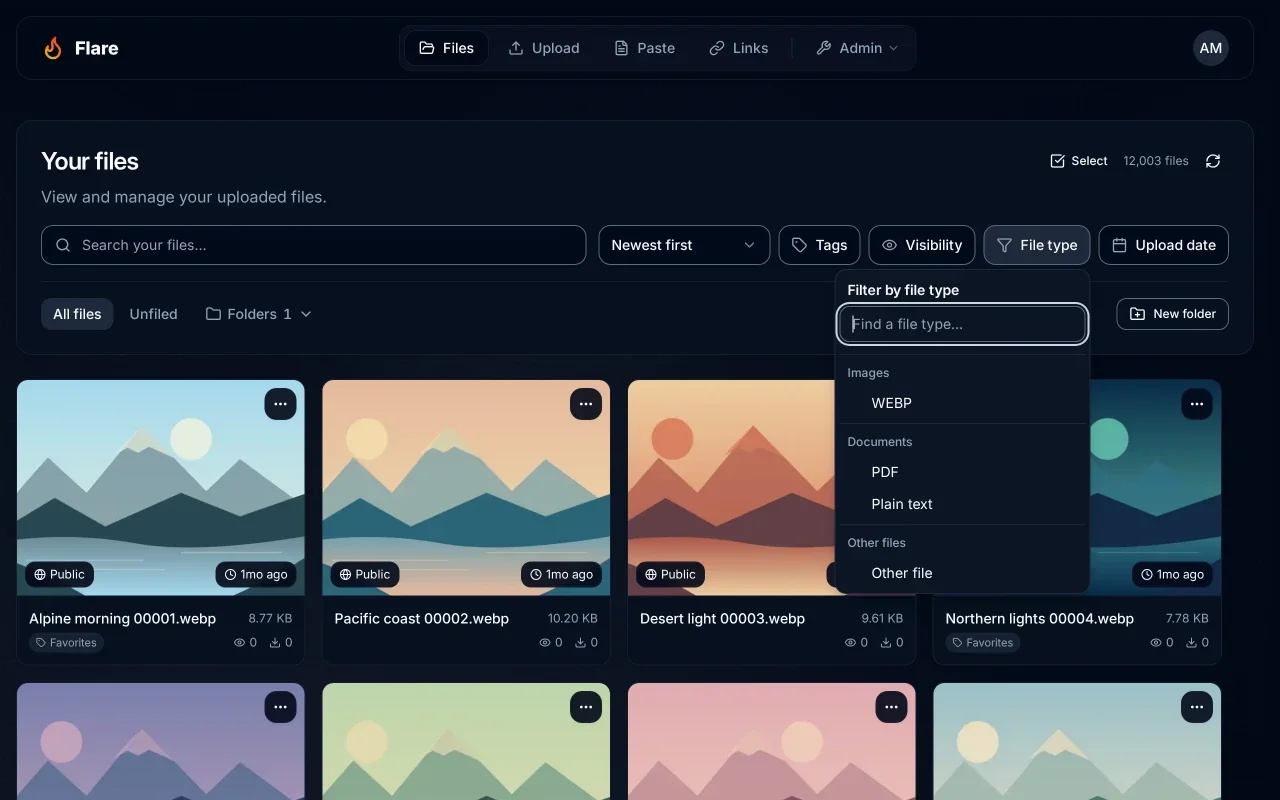
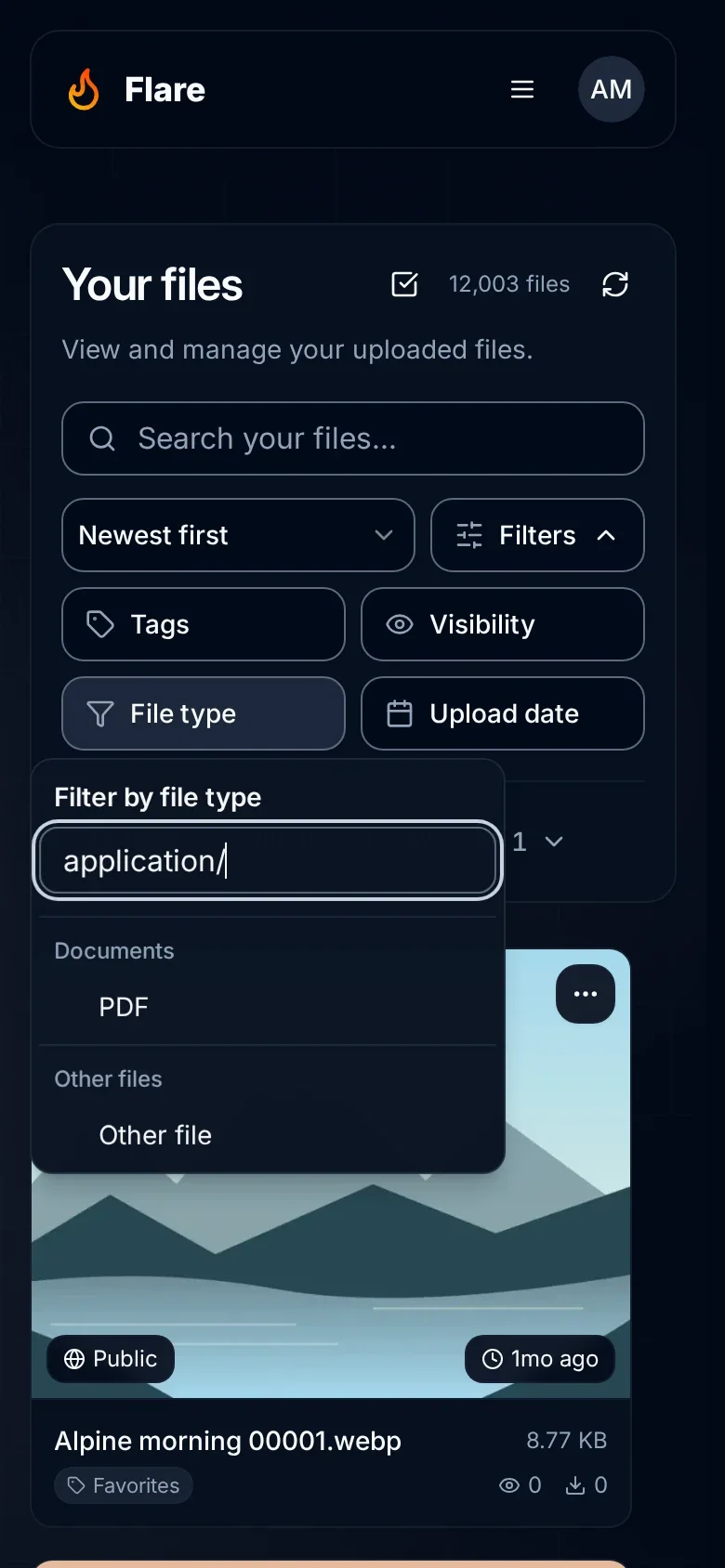
Separate controls combine. For example, a folder, an image type, and a search phrase narrow results to matching images in that folder. Visibility is the notable exception within its own menu: checking multiple values includes any selected value.
Each applied filter appears as a removable chip below search. Choose its × to remove only that search, tag, file type, visibility choice, date range, or grouping; the other constraints and current folder stay selected. A date chip names the selected dates in your browser’s time zone.
Reset filters clears search, tags, dates, types, visibility, sorting, and grouping while keeping the folder you are browsing. To leave the folder too, choose All files in the folder browser.
The page address includes your filters. Bookmark it to return to the same view; browser Back and Forward restore the controls along with the results. Scrolling does not add a browser-history entry or save an exact position in the URL. The URL is a view of your signed-in library, not a public share link.
If you follow a file's link from the library, browser Back returns to the same file row. A row that was partly offscreen near the library's end can return fully into view below the navigation. This saved position belongs to the current browser-history entry; a copied URL or bookmark keeps the filters without carrying your scroll position.
Existing bookmarks with page and limit still open near the corresponding file in the continuous list. Additions, deletions, or different filters can change which file occupies that position. After an upgrade, your files, folders, tags, and saved filters need no conversion.
Browse by date
Open Upload date → Group files to choose By week, By month, or By year. Grouping works with Newest first and Oldest first. Choosing a size or activity sort turns date grouping off; enabling grouping from those sorts returns to newest first.
On a short screen, the calendar scrolls within the popover. Group files and, after selecting dates, Clear date range stay visible below it.
Grouping adds headings to the continuous list and adjusts the date rail to the same period. Upload dates use your browser's time zone; weeks begin on Monday. Without grouping, the rail shows the upload month. Grouping changes presentation without moving files or changing their upload dates.
Inspect images
Image cards show previews for public images and for your private or password-protected images. Protected previews use your browser session. Flare sends each preview as a small copy sized for the card, so a screen of photos downloads a few kilobytes for each card instead of every original. GIFs keep their animation and SVG images are shown as they are; both load whole, as does an image over 32 MiB. Earlier versions could resize only public images, so each private or password-protected card downloaded its whole original. Only visible and nearby cards load as you scroll.
Open an image preview to browse it in the full-screen viewer. The image sequence respects the active folder, search, tags, sorting, and other filters, including images beyond the cards currently loaded in the library. Other file types are skipped in that image sequence. The viewer's header shows the image's name and upload date; once you move to another image, it also shows that image's place in the sequence, such as 12 of 40. On narrow screens, long names and labels are shortened with an ellipsis so they stay clear of the header controls.
| Action | How |
|---|---|
| Previous or next image | Arrow controls, Left/Right keys, or swipe. |
| Zoom | Plus/Minus controls or + / -. |
| Pan a zoomed image | Drag, or use Shift with an arrow key. |
| See the whole image | Choose Fit, or press 0. |
| Close | Choose the close button or press Escape. |
| Download | Use the download control when available. |
The top-right Copy link control copies the current image’s share-page URL. Like Copy link on file cards, it appears only for roles with files.share; earlier builds showed it in the viewer to every role. Open share page takes you to that page in the same tab for every role; browser Back returns to the library. These actions do not change visibility or remove password protection. If copying fails (for example, clipboard access is blocked), open the share page and copy the address from your browser.
If an image disappears from the filtered results while you browse, Flare may ask you to choose another image. If a next image fails to load, check your connection and retry.
Work with a file
Open the card's menu for the full action list. On a desktop, preview actions also appear on hover or keyboard focus; the menu keeps the same actions available on touch screens.
- Open file: open its share/viewer page.
- Copy link: copy its share-page URL. The link starts with the address you opened Flare at and uses your account's URL ID, not your vanity URL. Links shown after an upload start with the instance's public URL instead, and use your vanity URL when you have one.
- Download file: save a copy to your device.
- Browse archive: browse supported archives of any size, preview images, video, audio, and text inside them, download an entry, or extract into a new folder. See archives. Flare offers it for ZIP, TAR, TAR.GZ, GZIP, RAR, and 7z files, recognized by their type or name. An image, video, audio, or PDF file named like an archive, such as
photo.zip, opens as that file; earlier builds offered Browse archive for it. - Edit tags: add or remove private organizational labels.
- Move to folder: change its library location without changing the file link.
- Change visibility: switch between public and private.
- Add password / Manage password: protect, replace the password, or remove password protection.
- Manage expiration: schedule deletion or a change to private, or remove the schedule.
- Extract text (OCR): read text from an image.
- Delete file: permanently remove the file after confirmation.
The card menu and the buttons shown when you hover a file follow the same permissions. Change visibility and Add password / Manage password require files.share; Manage expiration requires files.update. Neither grant implies the other: a person allowed to share can manage passwords without file-edit permission, and a person allowed to edit can open expiration controls without sharing permission. Scheduling Delete still additionally requires files.delete, and Set to private requires files.share.
If a visibility, password, expiration, or delete action fails, its message gives Flare's reason when there is one, for example File not found for a file deleted in another tab, or Permission denied after your role changed. Without a reason, for example when the connection drops, it says Please try again. Earlier versions said Please try again. for every failure. After any of these actions succeeds, the library reloads to show the changed file.
When you confirm Delete file, the file's size stops counting toward your storage use in Profile → Your data at once. Flare removes the stored copy in the same step. If the storage service fails at that moment, the file is still deleted from your library and you see File deleted; Flare records the failure for your administrator, who may need to remove the leftover copy.
Work with several files
Choose Select, then select individual cards or Select visible files. The latter selects loaded cards currently on screen, up to the selection limit; it does not select your whole library or files loaded just beyond the screen. Scroll to add files from another part of the library. Your selection stays selected as cards leave the screen, and the selection bar remains available while you scroll.
You can select up to 100 files at a time, then choose Edit tags, Move, or Create archive where your permissions allow. Deselect individual files to make room, or finish the current batch before starting another.
The selection bar counts your selection against that limit, for example 2 selected · up to 100. Select visible files shows a dash when only some of the files on screen are selected; choose it to add the others. When it is checked, choosing it again removes the files on screen from your selection and keeps the rest.
The image viewer, the archive browser, the date filter's calendar, and the tag, move, expiration and archive dialogs are downloaded the first time you use one, usually while the pointer or keyboard focus is already on its button, instead of with the library. A dialog still on its way doesn't open once you have chosen another action, changed the selected files or the filters, or pressed Done. If the download fails, a notification says Couldn’t open that; choose the action again.
Before Edit tags, Move, or Create archive opens, Flare fetches current details for every selected file, including cards outside the visible window. If that check fails, retry the action. If a selected file is no longer available, choose Done and select the remaining files again.
Changing the search, filters, folder, sort, or grouping clears the selection. Done leaves selection mode and clears it too.
Select is available when your role allows at least one bulk action, and the selection bar shows only those: Create archive needs files.read and files.upload, Move needs files.update and folders.manage, and Edit tags needs files.update and tags.manage.
Edit tags reloads current tag assignments for the whole selection before enabling edits, including selected files outside the visible window. See bulk tagging for checkbox meanings and loading recovery.
With files.read and files.upload, Create archive packages up to 100 selected owned files into a new ZIP or TAR.GZ. It defaults to private/no expiration; explicitly choosing an upload profile applies that profile’s settings. Saving into a folder also requires folders.manage. The originals remain unchanged; archive limits and defaults apply separately from ordinary uploads.
Read text in images with OCR
For an image, choose Extract text (OCR). Flare processes the image on the server and opens the extracted text; use the dialog's copy action to reuse it. Until Flare answers, the card shows Extracting text…; on a share page, Extract text reads Reading image…. The dialog then opens with the text or one of the messages below. Earlier versions opened the share page's dialog straight away with a spinner. If your browser blocks the clipboard, Copy text shows Couldn’t copy the text; select the text in the dialog and copy it instead. OCR can make screenshots searchable and can trigger automatic tag rules.
If the administrator enables automatic OCR, images can be processed after upload without a manual request. Upload completion does not mean OCR has completed. Manual extraction remains useful when automatic processing is disabled.
Flare reads one image at a time, and requests and automatic processing share that turn. Asking about an image that is already being read waits for the same result instead of starting again, and doesn't count toward your reading limit. Saved text opens immediately. The same applies when visitors choose Extract text on a share page. If the dialog shows one of these messages, the text isn't lost:
| Message | What to do |
|---|---|
| Flare is still reading this image | Reading continues on the server after a one-minute wait. Choose Check again shortly to see the text. |
| Flare is busy reading other images | Ten new images are already waiting to be read, or 30 requests are already waiting for results. Choose Try again in a minute. |
| You’ve asked Flare to read several images | Each account, or each address for visitors who aren't signed in, can start 20 readings per 10 minutes. Saved text doesn't count. The message says how long to wait. |
| Flare couldn’t read text from this image | The last attempt failed. Flare waits 5 minutes before reading that image again; the message says when. Try a clearer, larger PNG or JPEG if it keeps failing. |
| Couldn’t extract text. Please try again. | The request didn't reach Flare, for example because the connection dropped. Choose Try again. |
Administrators with audit.read can inspect OCR start, completion, and failure events alongside the file’s other activity in Audit log. Those audit details do not include extracted text. Ask for an investigation when processing repeatedly fails; do not assume a successful upload also completed OCR.
OCR supports images, not a general PDF or office-document indexing workflow. Results depend on legibility, resolution, and the recognition language. Review extracted text before using it as an exact transcription. Flare's current OCR worker uses English recognition.
Understand activity and refresh
Cards show view and download counts, and those counts can drive sorting. Share-page visits and successful /raw GET requests contribute to the view total, including media range requests. The count can include bots and multiple requests from one person; see view counts for the counting rules and upgrade behavior.
Use Refresh files to fetch the latest results. Uploads completed through the dashboard drop overlay also refresh an open library. Files can move within a sorted list when uploads, deletions, or activity change its order.
If a section fails to load, choose Retry after checking your connection. If it still fails after files were changed in another tab or client, choose Refresh files to rebuild the current view. Flare keeps the active search and filters. Loading placeholders and a failed request do not mean that files have been deleted.
A file seems to have disappeared
Choose All files, then Reset filters. A move, tag edit, or visibility change can remove a file from a filtered view; your unfiltered library still includes your private files. If it uploaded under a different account or was permanently deleted, including by an expiration, it will not appear in this account's library. A failed results request shows a retry state; it does not mean your files were deleted.
A file downloads but has no preview
Storage and browser preview support are separate. Flare previews common images, media, PDFs, text, code, and CSV. Unsupported formats remain downloadable. Browser codec support can also prevent playback even when the upload succeeded.
For a supported image showing a generic icon, reload the page to retry its preview. If it still fails, check the thumbnail request as described in thumbnail troubleshooting.
File cards use a shorter 4:3 preview, so more of a mixed collection fits on screen. Files without an image preview show their type or extension under the icon. Opening a file, image preview, archive browsing, selection, and the date rail continue to work with the same controls.